DataGrip
DataGrip supports querying both internal data and external data in StarRocks.
You can connect to StarRocks from DataGrip using either the native StarRocks JDBC driver (recommended) or the MySQL driver.
Connect using the StarRocks JDBC driver (recommended)
The StarRocks JDBC driver provides accurate metadata discovery, which enables schema browsing, auto-complete, and table introspection in DataGrip.
Prerequisites
Download the StarRocks JDBC driver JAR. See StarRocks JDBC Driver for download instructions.
Steps
-
In DataGrip, go to File > Data Sources (or click the Database icon in the toolbar).
-
Click + and select Driver and Data Source.
-
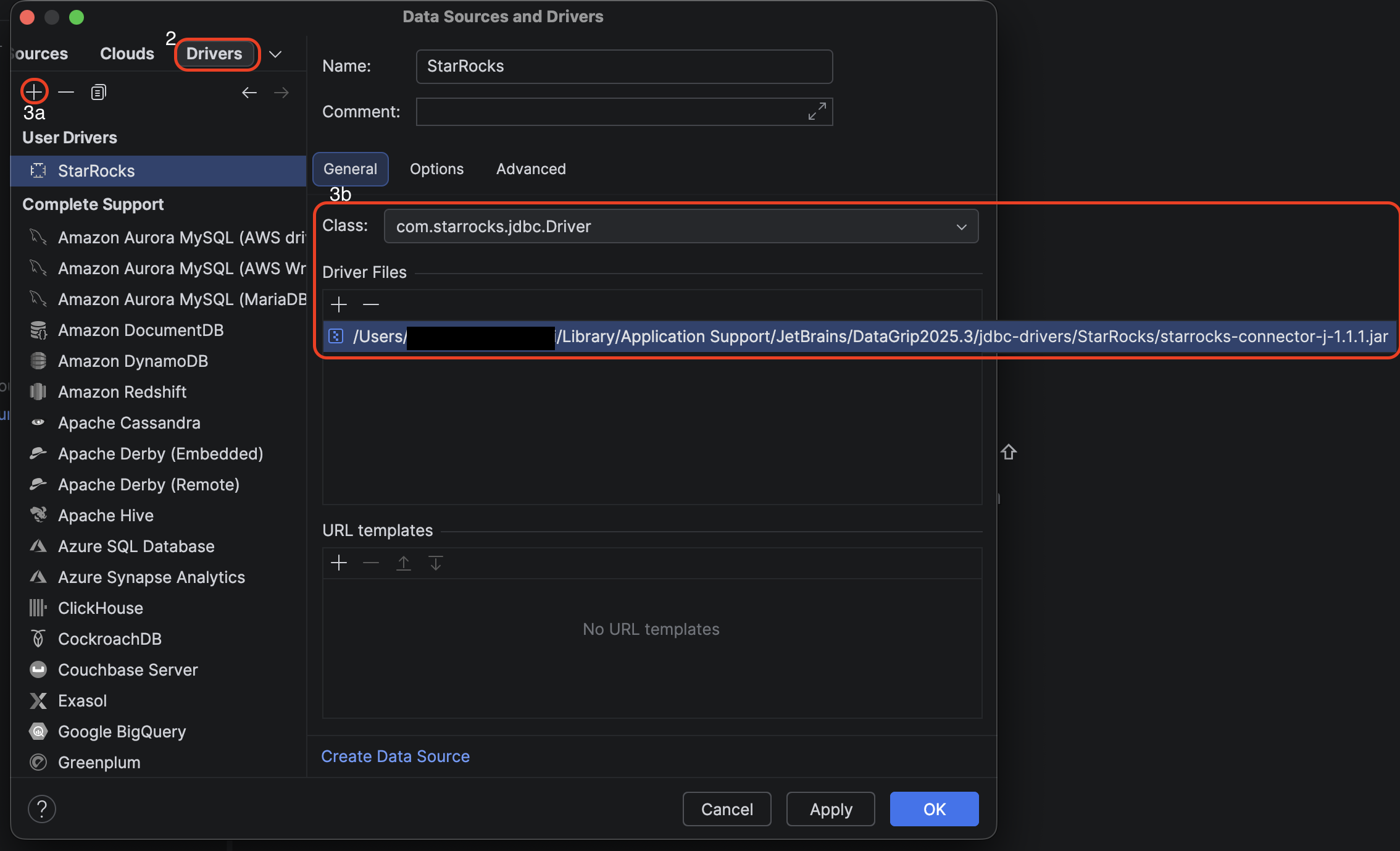
In the Drivers tab, click + to create a new driver.
- Set the Name to
StarRocks. - Under Driver Files, click + and add the StarRocks JDBC driver JAR you downloaded.
- Set the Class to
com.starrocks.cj.jdbc.Driver. - Set the URL template to one of:
jdbc:starrocks://{host}:{port}
jdbc:starrocks://{host}:{port}/{database} - Click OK to save the driver.
- Set the Name to
-
Back in the Data Sources tab, click + and select the StarRocks driver you just created.
-
Configure the connection settings:
- Host: the FE host IP address of your StarRocks cluster.
- Port: the FE query port of your StarRocks cluster, for example,
9030. - Database: the database to connect to, in the format
[{catalog_name}.]{database_name}. Both internal and external catalogs are supported. If the catalog is omitted,default_catalogis used.catalog_name: the name of the target catalog in your StarRocks cluster.database_name: the name of the target database in your StarRocks cluster.
- User: the username to log in to your StarRocks cluster, for example,
admin. - Password: the password to log in to your StarRocks cluster.
-
Click Test Connection to verify the settings, then click OK.
After connecting, DataGrip only loads the database list. Tables are not fetched until you right-click the database in the sidebar and select Refresh. This is expected behavior.
Browse catalogs and databases in the sidebar
After connecting, there are two ways to control what appears in the left sidebar:
Option 1 — Use the URL to scope directly to one catalog/database (simplest)
Edit the URL field to include catalog.database as shown in the tip above. DataGrip will display that catalog and database in the sidebar immediately, with no further configuration.
Option 2 — Select schemas in data source properties (multiple catalogs/databases)
- Double-click the data source (or right-click > Properties).
- Go to the Schemas tab.
- Check the catalogs and databases you want visible in the sidebar.
- Click OK. DataGrip will refresh and display your selection.
Connect using the MySQL driver
The MySQL driver is a fallback for the StarRocks JDBC driver.
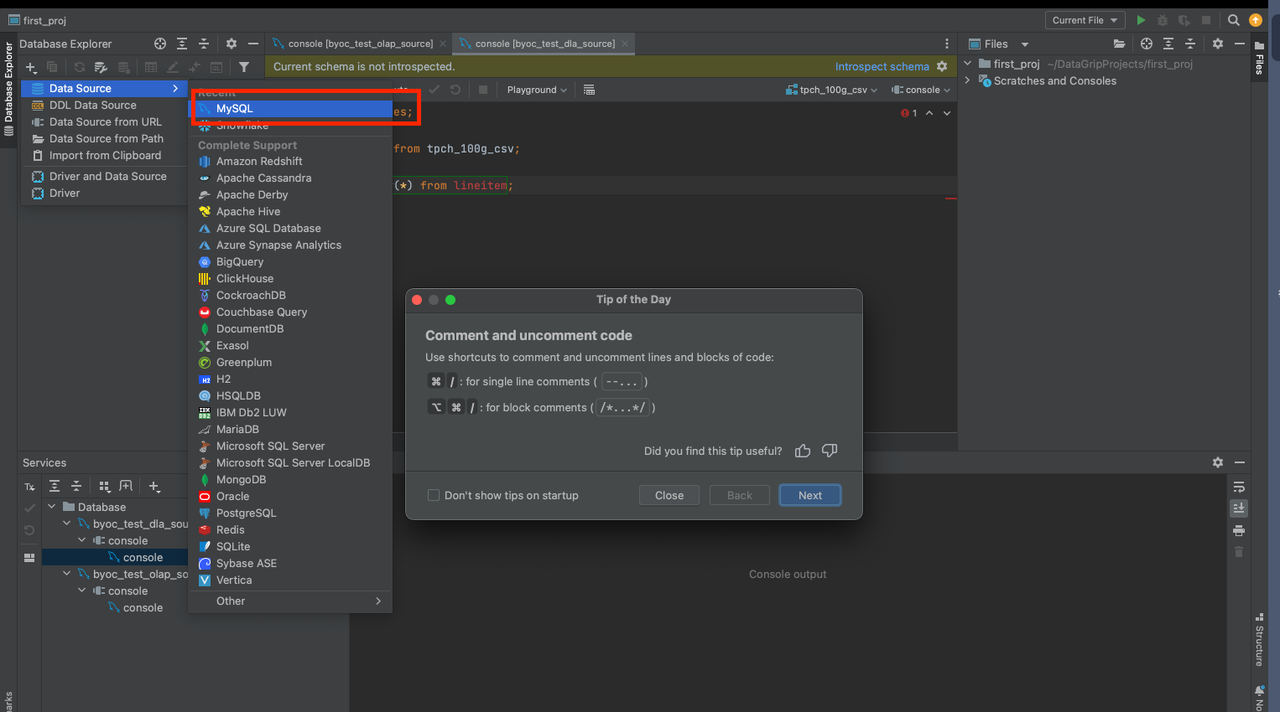
Create a data source in DataGrip. Note that you must select MySQL as the data source.
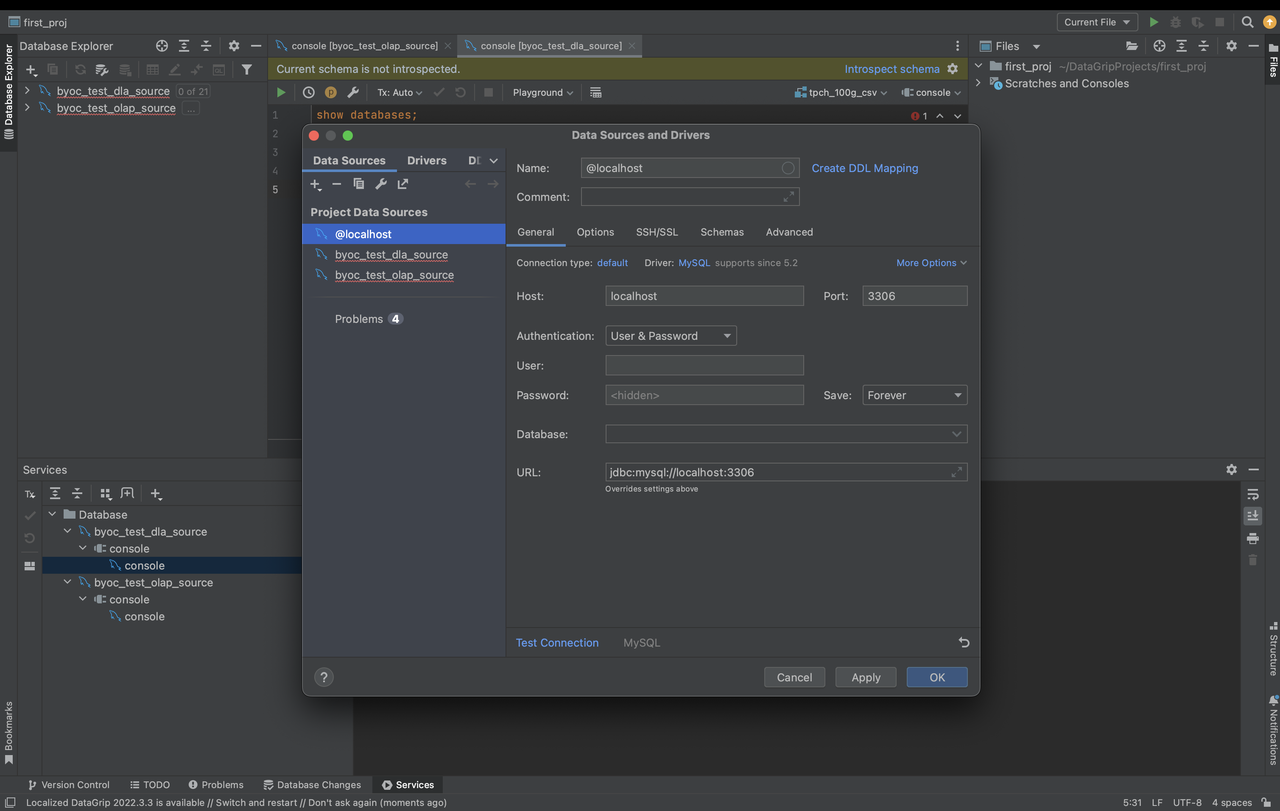
The parameters that you need to configure are described as follows:
- Host: the FE host IP address of your StarRocks cluster.
- Port: the FE query port of your StarRocks cluster, for example,
9030. - Authentication: the authentication method that you want to use. Select Username & Password.
- User: the username that is used to log in to your StarRocks cluster, for example,
admin. - Password: the password that is used to log in to your StarRocks cluster.
- Database: the data source that you want to access in your StarRocks cluster. The value of this parameter is in the
<catalog_name>.<database_name>format.catalog_name: the name of the target catalog in your StarRocks cluster. Both internal and external catalogs are supported.database_name: the name of the target database in your StarRocks cluster. Both internal and external databases are supported.
